Monday, 12 December 2022

Shutdown Date of Powered Off VMs using VMware PowerCLI

So you have got a list of Powered OFF VMs in vCenter and would like to perform a cleanup however you don't have any idea when this was powered OFF. Well there are three ways to find the powered OFF date.

1. Event Timestamp - highly reliable method 

2. NVRAM Timestamp - average reliable method

3. Storage Timestamp - least reliable method

Prerequisites 

Create a txt file named VMList.txt and paste the name of VMs one by one.

Step by Step Procedure

1. Save the VMList.txt in C:\Temp of your windows machine

2. Open PowerShell ISE and connect your vCenter

Connect-VIServer my-vcenter.xyz.intra

3. Input credentials and wait for the connection to establish.

4. Now paste the below script in the PowerShell ISE.

get-content "C:\Temp\VMList.txt" |

foreach {Get-VM -Name $_|

       Select Name,PowerState,

  @{N='Event Timestamp';E={

  (Get-VIevent -Entity $_ -MaxSamples ([int]::MaxValue) |

  where{$_ -is [VMware.Vim.VmPoweredOffEvent]} |

  Sort-Object -Property CreatedTime)[-1].CreatedTime

  }},

  @{N='Storage Timestamp';E={$_.ExtensionData.Storage.Timestamp.ToLocalTime()}},

  @{N='NVRAM Timestap';E={

  $dsName = ($_.ExtensionData.LayoutEx.File | where {$_.Type -eq 'nvram'}).Name.Split(' ')[0].Trim('[]')

  $ds = Get-Datastore -Name $dsName

  New-PSDrive -Location $ds -Name DS -PSProvider VimDatastore -Root "\" | Out-Null

  $file = Get-ChildItem -Path "DS:\$($_.Name)\$($_.Name).nvram"

  Remove-PSDrive -Name DS -Confirm:$false

  $file.LastWriteTime

  }} 

  } |Export-csv "c:\Temp\output.csv"

5. Select this Script in your PowerShell ISE and run this.


6. You will get the output in C:\Temp\output.csv in the below format.


Any questions, ask in comments.

Cheers!


Wednesday, 12 February 2020

Licensing Mode for Remote Desktop Session Host is not Configured


Issue

You run into the below issue (fig. 1) even after configuring RDS Licensing Server (fig. 2)

Licensing Mode for Remote Desktop Session Host is not Configured

The Remote Desktop Session Host server is within its grace period, but the RD Session Host server has not been configured with any license server.

fig.1


fig. 2


Troubleshooting

You can check whether the license server is set using the following PowerShell commands:

$obj = gwmi -namespace "Root/CIMV2/TerminalServices" Win32_TerminalServiceSetting
$obj.GetSpecifiedLicenseServerList()


No value returned in our case in 'SpecifiedLSList' - meaning license server is not set though we set this on fig. 2.

Fix

Set the RDS license server parameters using GPO (a local or a domain policy).

We use Computer Configuration -> Administrative Templates -> Windows Components -> Remote Desktop Services -> Remote Desktop Session Host -> Licensing.

Required settings are :

1. Use the specified Remote Desktop license servers (fig. 3) - enable the policy and specify the RDS license server address.

2. Set the Remote Desktop licensing mode (fig. 4) -  select the licensing mode. In our case, it is Per User.

fig. 3


fig. 4


In my case the issue got fixed without a restart (I used local GPO), you may try a reboot as well.


You can also run the previous command to see the license servers.

$obj = gwmi -namespace "Root/CIMV2/TerminalServices" Win32_TerminalServiceSetting
$obj.GetSpecifiedLicenseServerList()


Cheers!!

Friday, 11 October 2019

Disk lock error in VMware


Issue :

You encounter below error while consolidating VM or powering ON a VM :

An error occurred while consolidating disks: msg.snapshot.error-DISKLOCKED

An error occurred while consolidating disks: msg.fileio.lock.

Consolidation failed for disk node 'scsi0:0': msg.fileio.lock

Unable to access a file filename since it is locked

Unable to access virtual machine configuration

A general system error occurred: vim.fault.G-enericVmC-onfigFault

Cause :
  • The common reason would be a powered on virtual machine contains locks on all files in use by the owning ESXi host to facilitate read and write access.
  • Other locks may be created by hot-adding disks to snapshot based backup appliances during the backup process.
  • Failure to create a lock / start a virtual machine can occur if an unsupported disk format is used or if a lock is already present.
Solutions

Solution 1 : vMotion the virtual machine

vMotion the virtual machine to a different host and try to consolidate/power on.

If the above is not successful storage vMotion the virtual machine to a different datastore.

Solution 2 : Restart the management agents on the particular host the VM is running on.

SSH into the ESXi host and run the command services.sh restart

Solution 3 : Restart the ESXi host.

Shutdown the affected VM. vMotion all other working VMs to a different host and restart the ESXi host.

Solution 4 : Unregister the virtual machine from the host & re-register the virtual machine on the host holding the lock.

Solution 5 : Clone the VMDK files to a different datastore using PowerCLI, create new Virtual Machine, attach the cloned VMDKs’.


Thursday, 19 September 2019

Get Cluster Resources using PowerCLI : VMware

Requirement : You need to extract CPU, Memory and Datastore size from a vCenter cluster.

Procedure:

Open PowerCLI

Enter the command Connect-VIServer <yourvcenterserver>

Now enter the below script after connecting your vCenter in PowerCLI:

Get-Cluster -Name  | get-vmhost | select Name, NumCpu, CpuUsageMhz, CPUTotalMhz, MemoryUsageGB, MemoryTotalGB | Export-Csv -NoTypeInformation -UseCulture -Path c:\temp\cluster.csv

You will get result similar to below 


This will extract the CPU, Memory total allocated and usage details.

Now to get a high level capacity details of all clusters in a vCenter please follow the below.

1. Create a PowerCLI profile and add the below code.

 a. To create a profile use the below code in PowerCLI

if (!(test-path $profile))
           {new-item -type file -path $profile -force}
notepad $profile

Now paste the below code in the notepad which has just opened, save and close it.

function Get-ClusterCapacityCheck {

[CmdletBinding()]
param(
[Parameter(Position=0,Mandatory=$true,HelpMessage="Name of the cluster to test",
ValueFromPipeline=$True,ValueFromPipelineByPropertyName=$true)]
[System.String]
$ClusterName
)

begin {
$Finish = (Get-Date -Hour 0 -Minute 0 -Second 0)
$Start = $Finish.AddDays(-1).AddSeconds(1)

New-VIProperty -Name FreeSpaceGB -ObjectType Datastore -Value {
param($ds)
[Math]::Round($ds.FreeSpaceMb/1KB,0)
} -Force

}

process {

$Cluster = Get-Cluster $ClusterName

$ClusterCPUCores = $Cluster.ExtensionData.Summary.NumCpuCores
$ClusterEffectiveMemoryGB = [math]::round(($Cluster.ExtensionData.Summary.EffectiveMemory / 1KB),0)

$ClusterVMs = $Cluster | Get-VM

$ClusterAllocatedvCPUs = ($ClusterVMs | Measure-Object -Property NumCPu -Sum).Sum
$ClusterAllocatedMemoryGB = [math]::round(($ClusterVMs | Measure-Object -Property MemoryMB -Sum).Sum / 1KB)

$ClustervCPUpCPURatio = [math]::round($ClusterAllocatedvCPUs / $ClusterCPUCores,2)
$ClusterActiveMemoryPercentage = [math]::round(($Cluster | Get-Stat -Stat mem.usage.average -Start $Start -Finish $Finish | Measure-Object -Property Value -Average).Average,0)

$VMHost = $Cluster | Get-VMHost | Select-Object -Last 1
$ClusterFreeDiskspaceGB = ($VMHost | Get-Datastore | Where-Object {$_.Extensiondata.Summary.MultipleHostAccess -eq $True} | Measure-Object -Property FreeSpaceGB -Sum).Sum

New-Object -TypeName PSObject -Property @{
Cluster = $Cluster.Name
ClusterCPUCores = $ClusterCPUCores
ClusterAllocatedvCPUs = $ClusterAllocatedvCPUs
ClustervCPUpCPURatio = $ClustervCPUpCPURatio
ClusterEffectiveMemoryGB = $ClusterEffectiveMemoryGB
ClusterAllocatedMemoryGB = $ClusterAllocatedMemoryGB
ClusterActiveMemoryPercentage = $ClusterActiveMemoryPercentage
ClusterFreeDiskspaceGB = $ClusterFreeDiskspaceGB
}
}
}

b. Close and re-open PowerCLI to get the above change effective.

2. Run the below script to extract the details.

Get-Cluster | Get-ClusterCapacityCheck | Select-Object Cluster,ClusterCPUCores,ClusterAllocatedvCPUs,ClustervCPUpCPURatio,ClusterEffectiveMemoryGB,ClusterAllocatedMemoryGB,ClusterActiveMemoryPercentage,ClusterFreeDiskspaceGB

You will get result similar to below


Wednesday, 27 March 2019

Java Update tab missing


Issue : You could not find Update tab in Java Control Panel


Solution :

For 32 bit OS:  Go to HKEY_LOCAL_MACHINE\SOFTWARE\JavaSoft\Java Update\Policy and change the value of EnableJavaUpdate to 1

For 64 bit OS : Go to HKEY_LOCAL_MACHINE\SOFTWARE\Wow6432Node\JavaSoft\Java Update\Policy and change the value of EnableJavaUpdate to 1


Cheers! 


Migrate option grayed out while trying to vMotion a VM


You may face the below issue on a vSphere environment:


Fix:

(Caution: Before performing these steps, make a note of the datastore where the virtual machine resides.)

1. In the vSphere Client, right-click the powered-off virtual machine and click Remove from Inventory.
2. Click Yes when prompted to confirm the removal.
3. Click Home > Storage
4. Open the Datastore and folder where the VM’s vmx file is stored
5. Right-click the .vmx file and click “Add to Inventory” (or “Register VM” in some verisons).
6. Follow the steps in the wizard to add the virtual machine back to the Inventory.
7. Click Home > Hosts and Clusters.
8. Right-click the virtual machine. The migrate option is now available.

Cheers!


An error occurred while taking a snapshot: msg.snapshot.error-QUIESCINGERROR

We are using Veritas NetBackup solution and encounter the above error frequently on our network.

There are multiple causes for this issue and you need to apply separate fix for each issue.

Solution 1 

The first and foremost thing we do is to search the VMware KB. So let's first work through the following article and see if it resolve the issue: https://kb.vmware.com/s/article/2069952

Solution 2 

Root cause : Though VMware snapshot provider service was disabled it was causing backup failure.

Fix : Upgrade VMware tools and remove Volume Shadow Copy Service Support during the upgrade (reboot is not required). This will remove the VMware snapshot provider service from server.


Solution 3

Root cause : Symantec Backup Exec Remote Agent is stopping the Virtual Disk Service

Fix : Un-install Symantec Backup Exec Remote Agent for Windows Systems from Programs and Features.


Cheers!


Remote Registry Query for Multiple Computers in a Domain


You may use this method to query any registry information from a batch of servers/computers in your network.

In this example I have queried the Symantec Endpoint Protection version currently installed on the servers and it's reporting servers.

Basically I need to query the value of the below registry keys in the remote server.

Location : HKLM\SOFTWARE\Symantec\Symantec Endpoint Protection\CurrentVersion\Public-Opstate

Reg Key : LastServerIP

Location : HKLM\SOFTWARE\Symantec\Symantec Endpoint Protection\CurrentVersion

Reg Key : PRODUCTVERSION

Basic Requirement

a. Make sure that you have admin privilege on the machine you are running the query.

b. Make sure that Remote Registry Service is started on the target machines.

Method

1. Create a .bat file and paste the below script

@echo off
set file=c:\serverlist.txt
for /f "Tokens=*" %%g in (%file%) do (
echo %%g>> c:\regquery.txt
reg query "\\%%g\HKLM\SOFTWARE\Symantec\Symantec Endpoint Protection\CurrentVersion\Public-Opstate" /v LastServerIP>> c:\regquery.txt
reg query "\\%%g\HKLM\SOFTWARE\Symantec\Symantec Endpoint Protection\CurrentVersion" /v PRODUCTVERSION>> c:\regquery.txt
echo.>> c:\regquery.txt
)

{Note :  The one I marked in red is what you need to modify in your case
            Also if you have multiple reg queries please add them one by one on the script}


2. Create a text file c:\serverlist.txt and paste the name of server you need to check.

3. Run the script in cmd with admin access.


4. Results will be present in c:\regquery.txt and is similar to below :


Cheers !

Meru WLAN Basic Configuration Guide

Meru

Meru Networks is a supplier of wireless local area networks (WLANs) to various industries. Meru Networks was founded in 2002 and headquartered in Sunnyvale, California, United States. Meru formulated many innovative approaches to wireless networking. It has used virtualization technology to create an intelligent and self-monitoring wireless network to allow enterprises to become all wireless, while smoothly migrating their business-critical applications from wired to wireless networks.

Major Products of Meru

Hardware

Controllers - For small enterprise to large enterprise use various models of controllers are available. Eg: MC1550, MC6000 etc.

Access Points - Different models of Access Points are available for various deployment scenarios.

Software 

Meru System Director Operating System - The operating system which runs on all Meru controllers and access points

Meru E(z)RF Network Manager - Manages multiple controllers and thousands of access points providing real-time location tracking and location firewall.

Meru Spectrum Manager - A spectrum analysis solution.

Meru Identity Manager - Allows businesses to provide access to thousands of Wi-Fi devices in the “bring your own device” (BYOD) workplace.

Meru Virtual Controller - Provides the same functionality as that of the hardware controller. It can be downloaded as OVF template and can be loaded to Esxi server.

To know more about the products visit http://www.merunetworks.com/products/index.html

Wireless LAN - The Meru Difference

Some of Meru’s key technology innovations include:

- Single Channel Architecture (SCA) for pervasive Wi-Fi coverage without the hassle of costly site surveys

- Channel layering to maximize client density without sacrificing pervasive coverage

- Intelligent network control traffic management

- Robust on-boarding and monitoring solution for BYOD

Basic Meru WLAN setup

This setup includes the following components:

1.) Meru MC3200v Virtual LAN Controller

2.) Meru 320i access points.

3.) Windows domain. 

4.) RADIUS server for AAA (Windows NPS).

Network Diagram


In this example I have used Meru Virtual LAN controller instead of a hardware controller. When it comes to the configuration part there will not be any difference between a hardware controller and virtual controller, except the system director is loaded to a hardware box in the former and to a virtual machine in latter.

Step by step configuration

This configuration includes the following:

A.) Deploying the controller, Access Point to an existing wired network consist of a Windows Domain

B.) Basic Controller and Access Point Configuration

C.) Basic Wireless Profile setup for  domain users with RADIUS authentication

D.) Basic Wireless Profile for guest users

E.) Configuring TACACS+ Authentication for Administrators (Optional)

A.) Deploying the controller, Access Point to an existing wired network consist of a Windows Domain.

1.) Meru Controller Installation. Download the Controller Installation guide and follow the steps outlined to deploy either a hardware controller or virtual controller. 

2.) The next step is to perform the basic configuration of the controller which you have deployed earlier. 

3.) Access the Controller console (if it is a hardware controller, connect it using a console cable and virtual controller - connect through vSphere client console )

3.)  Login to the controller with user name as admin and password admin. Type setup to launch the initial configuration script.

4.) Perform the rest of the configuration using the guide which is available for download from the following link Make sure that you followed the steps under the topic 'Setup Via CLI' only. We will configure the rest of the Controller setup via CLI latter in this blog.


5.) Once the initial setup is done via CLI. It's time to check whether the Meru WebUI is working. Connect the web interface of your controller via the IP address you configured during the setup i.e https://ipaddress Also check whether you are able to connect your controller using an SSH connection. Below screenshot shows the WebUI.


6.)  Install Meru Access Point using the Installation guide which is available for download from the below link. 

B.) Basic Meru Controller and Access Point Configuration

All the configurations are done using CLI. Meru CLI is very similar to Cisco and many of the Cisco commands will work here. If you are comfortable with Cisco routers I would recommend you use CLI for configuration. Also some CLI commands does not have a WebUI alternative. So in some point of time you will have to use CLI.

Like Cisco CLI, Meru have got different command modes - User EXEC Mode, Privileged EXEC Mode, Global Configuration mode. 

Setting the command history buffer size

Just in case you need to recall the commands you have typed previously, the default size is 10.

I am just setting it as 20. Use the command terminal history size 20 in Privileged EXEC Mode.

Meru Controller File System (CFS)

Using CFS you can manage the controller OS and its configuration files.

Below are the local directories present in a controller:

Images         - Directory where the current image resides
Backup         - Contain backup configuration
ATS/scripts  - Contain AP bootup scripts
Capture        - Contain the packet capture files

Some useful commands

Show current directory - pwd

List files inside directory - dir

Change to another directory - cd ATS/scripts

Configuration Files

Similar to Cisco router, Controller have got startup configuration and running configuration.

The command copy running-config startup-config (to save running config to startup config) is also applicable here.

Copy files to and from the Controller

In some situations you might need to transfer files to the controller or backup files from the controller. You can use the following protocols to do the same: FTP, SFTP, TFTP, SCP

If the server from/to which you perform the file transfer is using a password then you can globally set the username and passwod using the below command:

ip ftp user-name myusername

Ip ftp password mypassword

Replace ftp with sftp, scp according to the server you are using.

Copy files from Controller to FTP, TFTP, SFTP and SCP server

For example, to copy a file script.log from the local directory of the controller to a remote FTP server. The server IP is 192.168.1.100 and its remote directory is backup. The username of the server is administrator. (If you have set the credentials earlier using the ip ftp username/password command, use the second command to copy)

1.  Copy script.log ftp://administrator@192.168.1.100/backup/

2. Copy script.log ftp://192.168.1.100

Here replace ftp with scp, sftp, tftp etc.

Copy files to Controller from a remote server

Copy ftp://192.168.1.100/script.log .

Summary of the File System Commands

Show flash - Displays the version of the image files contained in the controller's  flash memory.

More running-config - Same as that of running-config. But there is a difference. Try to figure out the difference ;-)

Reload ap [id] | all | controller | default - To reload ap, controller or all.

[CAUTION :- The keyword default will reboot all Aps' and Controllers at the factory default startup configuration.]

Licensing

The following commands will display information about the license :

show license
show controller
show license-file active

To import a license file from ftp/sftp/tftp use the following command in global configuration mode:

License ftp://192.168.1.100/license3411.lic active

Configuring DHCP server in Controller 

You can configure DHCP server in Controller itself so that you might not want to rely on external DHCP servers to server the client devices. This is basically done in small environments. Deploying Controller based DHCP server in large environment may increase the Controller load.

In a controller you can configure multiple DHCP servers for different VLANs' in your network. You can map each VLAN with DHCP server.

Important : DHCP Relay Pass-through MUST be enabled for a Controller based DHCP to work. To enable DHCP Relay Passthrough globally, use the below command in global configuration mode:

ip dhcp-passthrough

To enable DHCP pass-through for a VLAN:

(config)#  vlan  TestVLAN tag  200
(config-vlan)# no  ip  dhcp-passthrough

Use the below code to configure DHCP server. Here I have tagged the DHCP server to vlan 'TestVLAN':

(config)# dhcp-server DHCP1
(config-dhcp-server)# enable
(config-dhcp-server)# vlan name TestVLAN
(config-dhcp-server)# lease-time 3600
(config-dhcp-server)#  ip-pool 192.168.1.10 192.168.1.100
(config-dhcp-server)# domain-name tony.com
(config-dhcp-server)# dns-server-primary 192.168.1.5
(config-dhcp-server)# dns-server-secondary 192.168.1.4
(config-dhcp-server)# enable

More options can be configured like below:


Republishing with a notification : Product discontinued hence this post is not relevant anymore..

Thursday, 2 June 2016

How to reboot multiple Virtual Machines on an ESXi host

Recently I got a request to schedule the reboot of multiple VMs on an ESXi host on every weekend.

Let me explain the scenario first. 

1. We need to schedule the reboot of all 50 VMs on every Saturday at 10.00PM (all those machines are Windows servers)

2. Both ESXi and vCenter are version 5.5

3. PowerCLI is installed on vCenter server.


Step-by-step Instructions


1. RDP to your vCenter server (if you are using vCenter server appliance you need to make changes on the below steps accordingly)

2. Make sure that you have enabled access for your domain user (domain administrator)\local server administrator so that they can access vCenter. If you haven't done this please follow https://virtuallylg.wordpress.com/2013/09/29/vsphere-5-5-how-to-add-domain-users-to-sso/

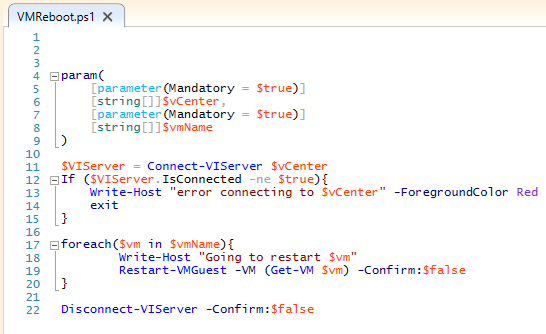
3. Open a notepad and copy paste the below script, save the file as 'VMReboot.ps1'

param(
    [parameter(Mandatory = $true)]
    [string[]]$vCenter,
    [parameter(Mandatory = $true)]
    [string[]]$vmName
)

$VIServer = Connect-VIServer $vCenter
If ($VIServer.IsConnected -ne $true){
    Write-Host "error connecting to $vCenter" -ForegroundColor Red
    exit
}

foreach($vm in $vmName){
        Write-Host "Going to restart $vm"
        Restart-VMGuest -VM (Get-VM $vm) -Confirm:$false
}

Disconnect-VIServer -Confirm:$false


4. Open PowerShell and test the script first (see below screenshot).


You need to mention your vCenter server and name of VMs you need to reboot. If you have multiple VMs separate the names with comma or if all VMs start with a common prefix use wild card (eg. "TestVM*")

See the VMs you have mentioned are getting rebooted. If the script works then schedule this job using Windows Task Scheduler

5. Open Task Scheduler and Create a basic task 

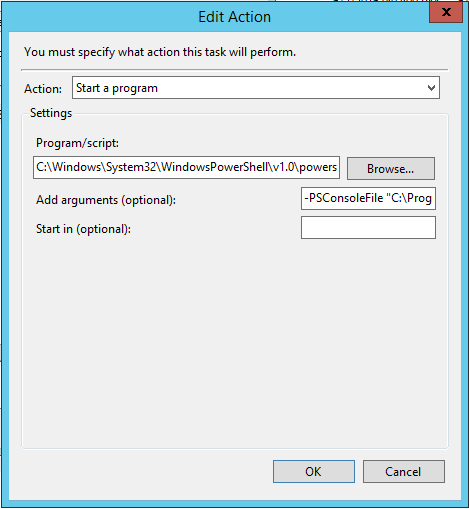
6. Mention your schedule and on Actions > Start a Program

Program/script : C:\Windows\System32\WindowsPowerShell\v1.0\powershell.exe

Add arguments-PSConsoleFile "C:\Program Files (x86)\VMware\Infrastructure\vSphere PowerCLI\vim.psc1" " &  "C:\VMReboot.ps1" -vCenter VCENTER-SRV -vmName "TestVM*"


Verify if the scheduled task is working by running it.

Enable Task History to make sure that the scheduled task is working properly


All the best!

Wednesday, 6 April 2016

Reviewing Google Apps for Education: How good is Google Apps for your School ?

I recently got a chance to implement and review Google Apps for Education in a school environment. So I just thought of sharing few information I acquired during my encounter with Google Apps. Hope this helps..!

"Cloud is changing the game"

What is cloud computing?


A solution allows companies to access IT-based services via the internet.

Cloud computing services operate at several levels:
  • Infrastructure as a service (IaaS)
  • Software as a service (SaaS)
  • Platform as a service (PaaS) 

How Cloud Computing Can Help in Education?

  • Potential Cost-savings : Moving to the cloud usually means moving away from a CAPEX model (physical assets that depreciate) to an OPEX model (pay per use).
  • Collaboration : It includes a wide range of communication and collaboration tools, ideal for conducting online classes or for providing peer to peer support or tutoring.
  • Backup : An important function of the Cloud is that it automatically saves content, making it impossible to lose or delete any valuable material.
  • Accessibility : Any data stored in the Cloud can easily be accessed from almost any device including mobile devices such as phones or tablets.
  • Storage : The Cloud allows its users to store almost all types of content and data including music, documents, eBooks, applications, photos, and much more. 
  • Flexibility : Offers the flexibility to meet rapidly changing software requirements for today’s and tomorrow’s teachers and students
  • No need for in-house expertise. Network managers can save a significant amount of time by reducing routine, operational tasks such as applying updates.

Google


No introduction is required for this name!

Just have a look at the verity of products they have :


Google for Education Products

45 million users among 190 countries are using Google for Education products.

Devices


Chromebooks, Chromeboxes and Tablets


Productivity Tools


Google Apps for Education Suite

This includes Classroom, Gmail, Drive, Calendar, Docs, Sheets ,Slides, Sites


Class Content


Apps, Books and Videos (YouTube For Schools)


More Products 


Google Cloud Platform, Chrome Browser, Google Search for Education, Google Maps for Education


Google Apps for Education & Office365 – A comparison


Both offer a similar feature set:


  • Online storage : Google offers unlimited storage for education whereas Office365 provides only 15 GB of free storage 
  • Both have app marketplaces
  • Both are free for education market.
  • Both services provide apps for mobile devices, and both offer options for accessing files when offline.

For most schools the real ‘value’ of a platform lies in how well that platform can support learning programs.

Google Apps – The counterpart of AD ?

  • Google Apps is a cloud directory service (Hmm, not a straight forward statement!)
  • No need to spend money for buying expensive directory services like Microsoft Active Directory or maintain complex management software.
  • Google Apps is simple : to configure, manage and troubleshoot.
  • It's free and a perfect solution for schools.
  • Almost all the applications required for a school environment are available in Google Apps for Education.

Can You Use Google Apps as Your Directory Service/ Can we replace AD with Google Apps?


Well, it depends on three factors:
  • What “directory services” means to your organization ?
  • Which specific IT resources you need to run your organization?
  • Whether your organization is new (a startup, or launched in the past 7-10 years) or has been around for a while (anything longer than 10 years)?

What “directory services” means to your organization ?

  • Are you looking to centrally manage your users? Google Apps may do this well enough if all you want to control is access to Google Apps and some web applications. If you have more needs, Google’s directory won’t suffice.
  • Are you looking to control device and application access for your employees? If so, you may find Google Apps is limited. 
  • Do you have a BYOD culture? 
  • Does your organization have a high bar when it comes to security due to regulations or the fact that you store sensitive information?

Which specific IT resources you need to run your organization?

  • Complete an ‘IT Audit”
Audit your Hardware, Application and Server Infrastructure
  • Ask questions like :
1. Are we using one type of device, or are we using a mix? (i.e. Windows, Mac OSX, etc.)

2. Which teams are using Windows, which teams are using Macs, which teams are using Linux devices and why?

3. Do we provide our users with mobile phones and tablets or do we subscribe to a BYOD (Bring Your Own Device) model?

4. Are most of your apps Web-based solutions or hardwired? And how do we expect that to change to web-based within the next 5 years? 10 years?

5.Do you have any on-premise, legacy apps?

Whether your organization is new (a startup, or launched in the past 7-10 years) or has been around for a while (anything longer than 10 years)?

  • If you are a “born in the cloud” company mainly leveraging Google Apps and some Web-based services, Google Apps Directory could work for you in your early stages.
  • If your organization has been around for a while, is more diverse with your IT infrastructure, or is growing rapidly, Google Apps Directory will not give you the control you desire.
Well, now it's your turn to decide Google Apps for Education is good for your school or not?

Monday, 3 August 2015

A short note about Bitcoin

Have you heard about a currency which you can mine? If not this is a new form of currency which you cannot touch but will get you everything which money can buy! This is called Bitcoin, the first example of a growing category of money known as cryptocurrency.

What is Bitcoin? 

Bitcoin is a form of digital currency, created and held electronically. No one controls it. Transactions are made without any bank's involvement. There are no transaction fees and no need to provide your real name. It is not backed by gold or credibility of any government. Bitcoins aren't printed, like rupees or euros but they are produced by lots of people running computers all around the world, using software that solves mathematical problems.

How to acquire bitcoin? 

There are different ways to acquire bitcoins. Here I am listing out a few:


Buy Bitcoins  


Simple as it says. You can buy bitcoins from somebody who have it or from a Bitcoin exchange by exchanging any fiat currency (USD, INR etc). While writing this article the price was 1BTC = $284.85 Surprised!?!


Earn by accepting Bitcoin as a payment for your product/services.


The best and easiest way to earn Bitcoins. However, there is a risk factor. You have to believe Bitcoins. In fact the Bitcoin value is based on faith. Sounds crazy huh!? You will get a clue from the below question and answer: 

Qn: What really backs the U.S. Dollar?

Ans:  U.S. Dollar is backed by the "full faith and credit" of the US Government, it means the labor, wealth and property of "The American People"!


Mine Bitcoin


Mining is the process by which new coins are created - tell your computer to solve a set of difficult mathematical problems and success is rewarded with bitcoin.

Sounds simple? 

No, it is not that simple! There are so many hurdles - mining hardware, software, complexity of the mathematical problem, processing power, electricity charges etc. And the fact that only a finite number of bitcoins can ever be created (21 million, to be exact) :-(

The other side of Bitcoin is something different. Nobel Prize winning economist Paul Krugman has even written an article 'Bitcoin Is Evil'- the topic explains the content. Either it is good or evil. Let's learn something new - just keep in mind "Ignorance is an evil weed".

Curious about Bitcoins?! Here are some good starts https://bitcoin.org , http://www.bitcoinmining.com and ask Google uncle ;-)

Wednesday, 22 October 2014

Wireless Networking Basics

It's been a while since my last post. So this time I have come up with a new topic, Wireless Networking! Wireless networking have been around for many years and is being used widely in many industries. I have prepared an FAQ about basic wireless networking which might help the WiFi beginners. As usual, if you have any comments or queries then do get in touch.

1.) What is a Wireless Network (WLAN)?

A wireless local area network (WLAN) is an interconnection of two or more devices using a wireless media. Wireless networks are made up of network adapters that transmit high frequency radio signals, instead of using wires or cables, to send information to other computers or devices on a network.

This gives users the ability to move around within a local coverage area and still be connected to the network. Most modern WLANs are based on IEEE 802.11 standards, marketed under the Wi-Fi brand name.

2.) What is a Wired Network?

A wired network connects devices to the Internet or other networks using cables. In the past, wired networks were sometimes thought to be faster than wireless ones. However, today’s WLANs have minimized that difference.

3.) What are the differences between a Wired and Wireless Network?

Wired Network
Wireless Network
Use Ethernet switches to interconnect endpoints.
Access points and Controllers interconnect endpoints.
Less mobility
Greater Mobility
Inexpensive
Expensive
Difficult to configure and manage
Easy to set up and manage.
Data travels through dedicated wires.
Data travels through Air. Radio waves are the media.
Single path for data to travel (wires).
Multiple path for data (channels).
Speed doesn't change with distance.
Speed varies with distance – Follows the inverse square law.
Signal physically secure.
Accessible to anyone. Security must be implemented.

Wired network                                                           Wireless network

4.) What are the major similarities of a wired and wireless network?
  • On both wired and wireless network packets are send from one MAC address to another.
  • Both are prone to bandwidth issues : Congestion and over utilization.
  • Both are reliant upon the major protocols like DHCP, DNS, RADIUS etc.
  • Both subject to problems in the backbone network like network failure, looping etc.

5.) What are the major devices used to build a WLAN?

Below are some important devices need to build a WLAN:

a.)  WLAN controller -> It is a device (either hardware or software) that directs or regulates traffic on the wireless network. The main purposes of a WLAN Controller are:

Centralized Control : Management of Wireless Access Points from a centralized location (like a Domain Controller)
Simplified Operations : It simplifies network deployment, operations, and management.

b.)  Wireless Access Points (WAP): A wireless access point (AP) allows wireless devices to communicate and are commonly connected to cabled networks to allow wireless users access to the network. This also helps us to extend the Wireless network over a wide range.

c.)  WLAN Network Interface card : Used in Laptops to connect with the WLAN.

d.)  RADIUS or (TACACS+): To provide Authentication, Authorization and Accounting (AAA), a security mechanism.

e.)  End devices such as Laptops, Tablet PCs', Mobile phone, Printer, VOIP etc.

f.) Power over Ethernet (PoE) : To provide power to APs', VOIP phones etc

Along with this there are many management/security software available in the market which are vendor specific. eg. RingMaster software of Juniper.

6.) What are the types of Wireless Network?

WLAN operates in two basic modes:

a.) Ad hoc mode -> Mobile units transmit directly (peer-to-peer)

b.)  Infrastructure mode -> Mobile units communicate through an access point that serves as a bridge to other networks (such as Internet or LAN).


7.) What is the major protocol used in Wireless Network?

IEEE 802.11. Mainly operating at 2.4 and 5 GHz.


8.) How to Secure WLANs?

To increase security, WLANs require:

User authentication, to prevent unauthorized access to network resources, authenticate users to be sure you know who is using the WLAN. Open Authentication, Shared Key Authentication , EAP Authentication (802.1x), MAC Address Authentication , Combination of MAC-Based, EAP, and Open Authentication, WPA Key Management (802.1x), Captive portal are the examples of wireless authentication solution.


Data encryption/privacy, to protect the integrity and privacy of transmitted data, encrypt data that travels on the network. WEP and WPA/WPA2 are the two important encryption mechanisms available. Wired Equivalent Privacy (WEP) encryption is not adequate nowadays, but WPA and WPA2 give you stronger options.

• Physically hide or secure access points to prevent tampering.

Basically while designing a wireless network we need choose the security protocol needs to be used in it. It can either be WEP or WPA/WPA2.

For example WPA2 is a security scheme that specifies two main aspects of your wireless security:
  • Authentication: Your choice of PSK ("Personal") or 802.1X ("Enterprise").
  • Encryption: Always AES-CCMP.

If you're using WPA2 security on your network, you have two authentication choices: You either have to use a single password for the whole network that everyone knows (this is called a Pre-Shared Key or PSK), or you use 802.1X to force each user to use his own unique login credentials (e.g. username and password).

Regardless of which authentication type you've set up your network to use, WPA2 always uses a scheme called AES-CCMP to encrypt your data over the air for the sake of confidentiality, and to thwart various other kinds of attacks.

802.1X is based on EAP, the Extensible Authentication Protocol that was originally developed for PPP, and is still used extensively in VPN solutions that use PPP inside the encrypted tunnel (LT2P-over-IPSec, PPTP, etc.). In fact, 802.1X is generally referred to as "EAP over LANs" or "EAPoL".


9.) What is the difference between WEP and WPA ?

WEP
WPA
Wired Equivalent Privacy
Wi-Fi Protected Access
A security protocol for wireless networks introduced in 1999 to provide data confidentiality comparable to a traditional wired network
A security protocol developed by the Wi-Fi Alliance in 2003 for use in securing wireless networks; designed to replace the WEP protocol.
Through the use of a security algorithm for IEEE 802.11 wireless networks it works to create a wireless network that is as secure as a wired network.
As a temporary solution to WEP's problems, WPA still uses WEP's insecure RC4 stream cipher but provides extra security through TKIP, AES, CCMP.
Wireless security through the use of an encryption key and uses CRC for Integrity check.
Wireless security through the use of a password. Uses Integrity check.
Open system authentication or shared key authentication. Mainly using MAC address for authentication.
Authentication through the use of a 64 digit hexadecimal key or an 8 to 63 character passcode. User Authentication is possible.


10.) Which are all the major vendors in WLAN market?

Cisco, Aruba, HP, Ruckus, Motorola, Meru, Juniper etc.

11.) What does WiFi mean? 

WiFi is the popular term for a high-frequency wireless local area network (WLAN). It is also is a set of standards for wireless local area networks (WLAN) currently based on the IEEE 802.11 specifications to ensure interoperability of wireless networking products.

12.) Which are the standards bodies primarily responsible for implementing WLANs?

IEEE : Defines the mechanical process of how WLANs are implemented in the 802.11 standards so that vendors can create compatible products.

The Wi-Fi Alliance : Basically certifies companies by ensuring that their products follow the 802.11 standards, thus allowing customers to buy WLAN products from different vendors without having to be concerned about any compatibility issues.
Frequencies bands.

13.) Some Basic Wireless Terminologies

Radio Frequency (RF)

Before we look into the radio frequency let's have a look into the electromagnetic spectrum as RF is a part of the electromagnetic spectrum.

The electromagnetic radiation spectrum is the complete range of the wavelengths of electromagnetic radiation, beginning with the longest radio waves and extending through visible light all the way to the extremely short gamma rays that are a product of radioactive atoms.

Now what is this electromagnetic radiation? Electromagnetic radiation (EM radiation, EMR, or light) is a form of energy released by electromagnetic processes. Electromagnetic radiation is made when an atom absorbs energy. The absorbed energy causes one or more electrons to change their locale within the atom. When the electron returns to its original position, an electromagnetic wave is produced. Depending on the kind of atom and the amount of energy, this electromagnetic radiation can take the form of heat, light, ultraviolet, or other electromagnetic waves.

Electromagnetic radiation travels in waves, just like waves in an ocean. The energy of the radiation depends on the distance between the crests (the highest points) of the waves, or the wavelength. In general the smaller the wavelength, the higher the energy of the radiation. Gamma rays have wavelengths less than ten trillionths of a meter which is about the size of the nucleus of an atom. This means that gamma rays have very high-energy. Radio waves, on the other hand, have wavelengths that range from less than one centimeter to greater than 100 meters (this is bigger than the size of a football field)! The energy of radio waves is much lower than the energy of other types of electromagnetic radiation. The only type of light detectable by the human eye is visible light. It has wavelengths about the size of a bacteria cell, and its energies fall between those of radio waves and gamma rays.

The types of electromagnetic radiation are broadly classified into the following classes:

Gamma radiation
X-ray radiation
Ultraviolet radiation
Visible radiation
Infrared radiation
Terahertz radiation
Microwave radiation
Radio waves

This classification goes in the increasing order of wavelength, which is characteristic of the type of radiation.


The below diagram explain electromagnetic spectrum more clearly.


Now let's look into RF in more detail.

Short for radio frequency, RF is any frequency within the electromagnetic spectrum associated with radio wave propagation. When an RF current is supplied to an antenna, an electromagnetic field is created that then is able to propagate through space. The current actually excites electrons within the antenna and the energy moves outward in the form of an electromagnetic wave.

Many wireless technologies are based on RF field propagation. Radio frequency is also abbreviated as rf or r.f.

RF basically range between a frequency range of 3 kHz and 300 GHz.

Here is an excellent video which describes RF in simple words https://www.youtube.com/watch?v=FVmTooGICNc

Also a great guide about RF and Antenna Fundamentals can be found at http://faculty.ccri.edu/jbernardini/JB-Website/ETEK1500/1500Notes/CWNA-ed4-Chapter-2.pdf

Service Set

A service set is a set consisting of all the devices associated with a consumer or enterprise IEEE 802.11 WLAN. It can also be called as a wireless cell or wireless workgroup.

  SSID  : To identify a service set we use Service Set Identifier (SSID). On an AP SSID is the combination of its MAC address and network name.

  BSS   : BSS(Basic service set) is an area where an AP service or It is a single wireless area for an infrastructure mode wireless LAN.

  BSSID : To identify BSS we use BSSID.

  ESS   : If the AP connects to a Wireless Controller over a wired connection (multiple APs' will be there in such a situation), then all together we call it as ESS.

Active and Passive Scanning

  Passive Scanning : Beacon frames are being sent out from the AP (typically every 100 milli second) to announce the presence of a wireless LAN. This frame contain many information like SSID, Capability information, Supported rates etc. [More about becon @ http://www.wi-fiplanet.com/tutorials/print.php/1492071] Laptops listens to these becon frames and connect to the desired WLAN. The process of listening to beacon is called Passive Scanning.

Whereas in Active Scanning clients will search for APs' through probe request. Active scanning is required when enabled the "SSID Hide" in AP. APs' respond with a probe response frame, containing capability information, supported data rates, etc., when after it receives a probe request frame.

Authentication, Association and Re-association

  Authentication

  Authentication frame: 802.11 authentication is a process whereby the access point either accepts or rejects the identity of a radio NIC. The NIC begins the process by sending an authentication frame containing its identity to the access point. With open system authentication (the default), the radio NIC sends only one authentication frame, and the access point responds with an authentication frame as a response indicating acceptance (or rejection). With the optional shared key authentication, the radio NIC sends an initial authentication frame, and the access point responds with an authentication frame containing challenge text. The radio NIC must send an encrypted version of the challenge text (using its WEP key) in an authentication frame back to the access point. The access point ensures that the radio NIC has the correct WEP key (which is the basis for authentication) by seeing whether the challenge text recovered after decryption is the same that was sent previously. Based on the results of this comparison, the access point replies to the radio NIC with an authentication frame signifying the result of authentication.

  Deauthentication frame: A station sends a deauthentication frame to another station if it wishes to terminate secure communications.

  Association

  Association request frame: 802.11 association enables the access point to allocate resources for and synchronize with a radio NIC. A NIC begins the association process by sending an association request to an access point. This frame carries information about the NIC (e.g., supported data rates) and the SSID of the network it wishes to associate with. After receiving the association request, the access point considers associating with the NIC, and (if accepted) reserves memory space and establishes an association ID for the NIC.

  Association response frame: An access point sends an association response frame containing an acceptance or rejection notice to the radio NIC requesting association. If the access point accepts the radio NIC, the frame includes information regarding the association, such as association ID and supported data rates. If the outcome of the association is positive, the radio NIC can utilize the access point to communicate with other NICs on the network and systems on the distribution (i.e., Ethernet) side of the access point.

  Reassociation

  Reassociation request frame: If a radio NIC roams away from the currently associated access point and finds another access point having a stronger beacon signal, the radio NIC will send a reassociation frame to the new access point. The new access point then coordinates the forwarding of data frames that may still be in the buffer of the previous access point waiting for transmission to the radio NIC.

  Reassociation response frame: An access point sends a reassociation response frame containing an acceptance or rejection notice to the radio NIC requesting reassociation. Similar to the association process, the frame includes information regarding the association, such as association ID and supported data rates.

Beacon and Probe

  Beacon frame: The access point periodically sends a beacon frame to announce its presence and relay information, such as timestamp, SSID, and other parameters regarding the access point to radio NICs that are within range. Radio NICs continually scan all 802.11 radio channels and listen to beacons as the basis for choosing which access point is best to associate with.

  Probe request frame: A station sends a probe request frame when it needs to obtain information from another station. For example, a radio NIC would send a probe request to determine which access points are within range.

  Probe response frame: A station will respond with a probe response frame, containing capability information, supported data rates, etc., when after it receives a probe request frame.

Interference

Interference is anything which modifies, or disrupts a signal as it travels along a channel between a source and a receiver. The term typically refers to the addition of unwanted signals to a useful signal.

Effects of Interference

> A decrease in the wireless range between devices
> A decrease in data throughput over Wi-Fi
> Intermittent or complete loss of the wireless connection

Causes of Interference

The five main interference factors are :

1.) Absorption
2.) Reflection
3.) Multipath
4.) Scattering
5.) Refraction

Some common causes of interference can be found @ http://packetworks.net/blog/common-causes-of-wifi-interference

How to avoid common Interference


Frequencies and Channels

What is a channel?

In a communication network a channel refers to a physical transmission medium such as a wire, or to a logical connection over a multiplexed medium such as a radio channel. A channel is used to convey an information signal, for example a digital bit stream, from one or several senders (or transmitters) to one or several receivers. A channel has a certain capacity for transmitting information, often measured by its bandwidth in Hz or its data rate in bits per second.

In a Wireless network each wireless radio operates on a configured radio frequency (RF) channel identified by numbers. A radio assigned to a particular channel both transmits and receives all traffic on that channel.

Depending upon the network configuration, some channels might have less interference than others. Choosing the right channel lets you optimize performance.

There are 14 channels designated for wireless networks in the 2.4-GHz frequency band and 42 channels in the 5-GHz frequency band.

The 14 channels in the 2.4-GHz band are spaced 5 MHz apart. The protocol requires 25 MHz of channel separation, meaning that it is possible for adjacent channels to overlap and then interfere with each other. For this reason, only channels 1, 6, 11 are typically used in the US to avoid interference. In the rest of the world, the four channels 1, 5, 9, 13 are typically recommended. The 2.4-GHz frequency band is heavily used because most devices can operate on that band.

The 5-GHz band is actually four frequency bands: 5.1 GHz, 5.3 GHz, 5.4 GHz, and 5.8 GHz. The 5-GHz band has a total of 24 channels with 20- MHz bandwidth available. Unlike the 2.4-GHz band, the channels are non-overlapping, therefore all channels have the potential to be used in a single wireless system. Because only 802.11a devices formerly used this band (occasionally 802.11n uses it also) this band is less crowded and targeted for increased use for new 802.11 technologies under development.

For best performance, choose a channel at least 5 channels apart from your neighbors' networks. Determine this by completing a site survey—a site survey includes a test for RF interference.

Try to use non-overlapping channels (eg. 1, 6, 11), or minimize overlap of signals by using channels as far apart as possible from other networks in range.

List of WLAN channels can be found at http://en.wikipedia.org/wiki/List_of_WLAN_channels

What is Frequency?

Frequency is the number of occurrences of a repeating event per unit time. Radio Frequency, which range around 3KHz to 300GHz is used for communication (basically a wifi network works at 2.4 GHz to 5GHz).

The 802.11 workgroup currently documents use in five distinct frequency ranges: 2.4 GHz, 3.6 GHz, 4.9 GHz, 5 GHz, and 5.9 GHz bands.

Site Surveying

A radio frequency (RF) site survey is the first step in the deployment of a Wireless network and the most important step to ensure desired operation. A site survey is a task-by-task process by which the surveyor studies the facility to understand the RF behavior, discovers RF coverage areas, checks for RF interference and determines the appropriate placement of Wireless devices.


Useful Links